

DS-2000 Frequently Asked Questions
Question number FAQ-0660
How to paste the list data of spectra from DS-0221 into Excel?
I will explain the procedure to copy and paste the values displayed in the spectrum list into the spreadsheet software EXCEL
(Operation Procedure - 1). Additionally, I have also described how to save the displayed values as a text (txt) file
(Operation Procedure - 2).
In the text, the order of menu operations is indicated as [Data Display] → [List Settings].
■ Operating Procedure - 1
To paste the list of power spectrum data into EXCEL, please follow the steps below.
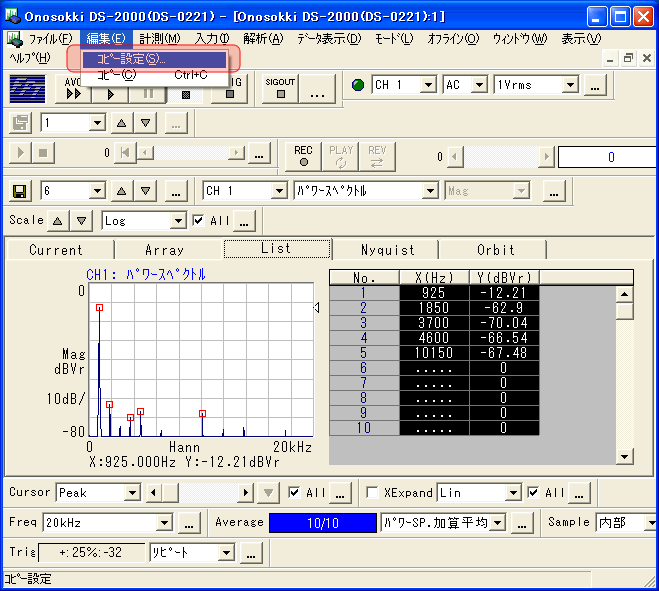
Set the display to the list screen as shown in Figure 2 of Step 2. You can configure the display method from the menu by selecting [Data Display] → [List Display Settings]. Here, it is set to "Number of Lists: 10, in order of frequency."
Select 'Edit' from the menu, then choose 'Copy Settings' to open the 'Copy Condition Settings' dialog box.
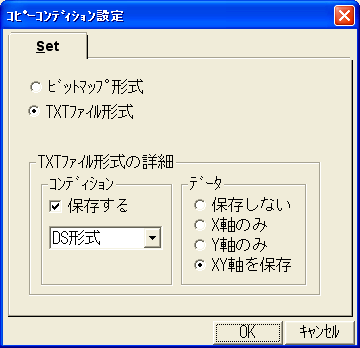
In the "Copy Condition Settings" dialog box, set each item such as "TXT file format" as shown in the figure below.
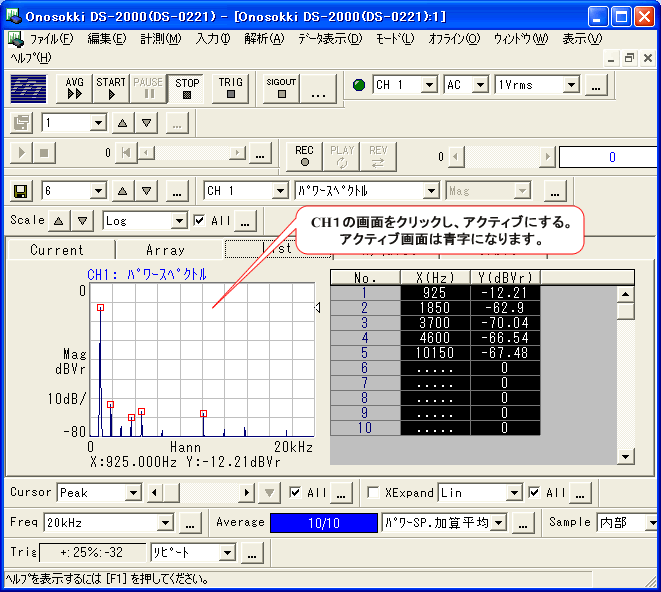
Click on the screen you want to copy to make it active. 'CH1: Power Spectrum' will appear in blue text.
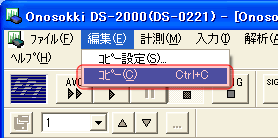
Select [Edit] → [Copy] from the menu. (Alternatively, you can right-click on the CH 1 screen and select [Copy] from the pull-up menu.)
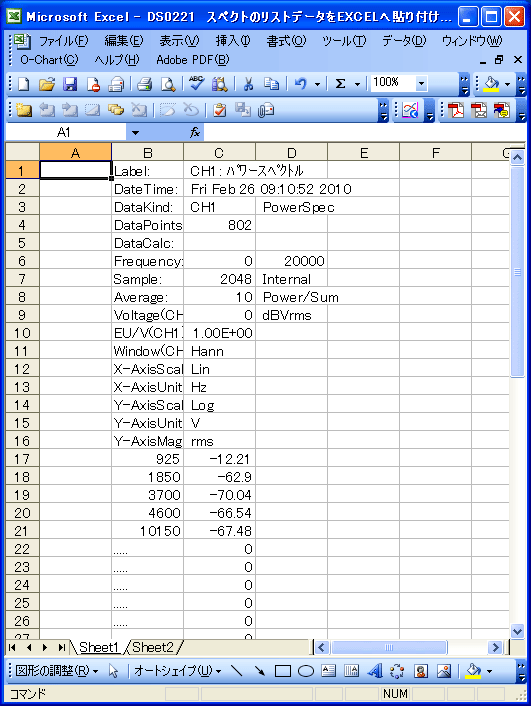
Start Excel, select any cell on the Excel screen, and paste the copied list data to insert the list data into the cell.
The next figure is an example of pasting the list data into Excel using the steps up to this point.
■ Operating Procedure - 2
To save the list display values as text (txt), please follow the steps below.
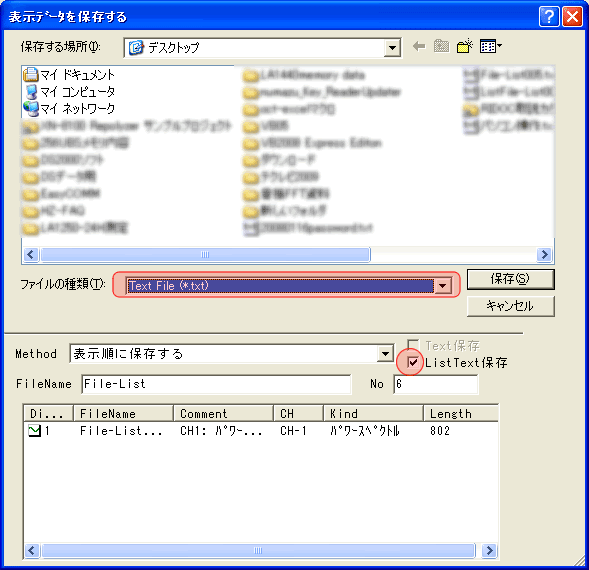
Select [File] → [Save Display Data] from the menu to open the "Save Display Data" dialog box. Then, as shown in the next figure, select the file type: TextFile (*.txt), check the ListText option that appears, and save.
As shown in the figure below, files are created with sequential numbers in their names, resulting in two files: one for spectral data and one for list data.
Last updated: 2010-03-15