

CF-7200 Frequently Asked Questions
Question number FAQ-0638
How to read tracking data (trc file) saved with CF-0722 tracking analysis software and analyze it by changing conditions?
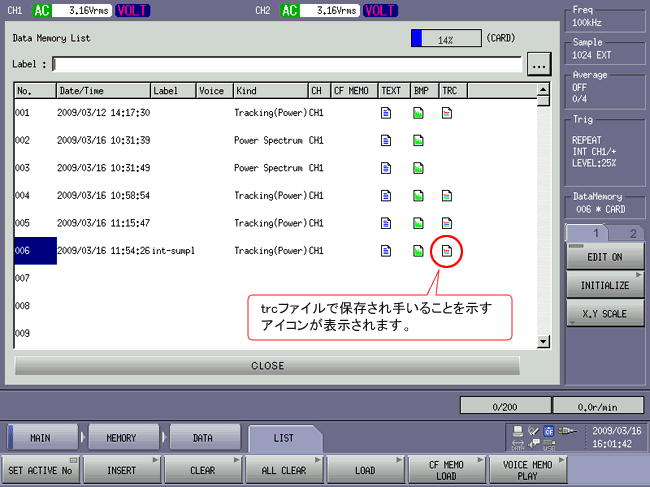
When saving data after tracking analysis using the CF-0722 tracking analysis software, it is saved in a file with the extension "trc" for tracking analysis (hereinafter referred to as trc file). This data contains multiple spectral data measured during tracking, saved in bulk. You can read this data and change the analysis conditions for display. The operation is the same for trc files of both constant ratio tracking and constant width tracking data. You can also use this trc file to display the spectral tracking data in 3D.
Operation Procedure
Press the 'STOP' button on the operation panel to stop the tracking measurement.
Press the 'ch1 SPECT' button on the control panel to switch to single screen display.
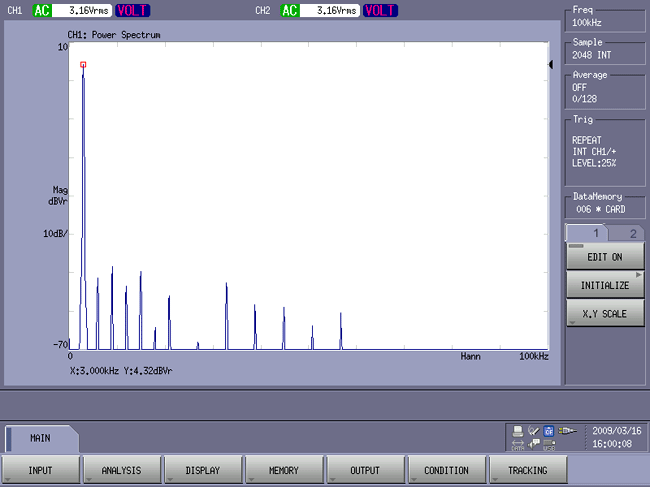
Click in the order of [MAIN] → [TRACKING] → [ON] to turn on the tracking analysis feature.
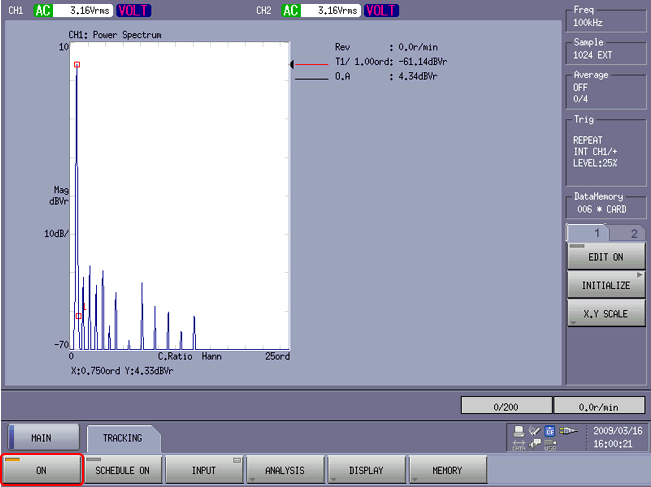
Click in the order of [MAIN] → [TRACKING] → [DISPLAY] → [TRACKING] to switch to the screen for tracking measurement.
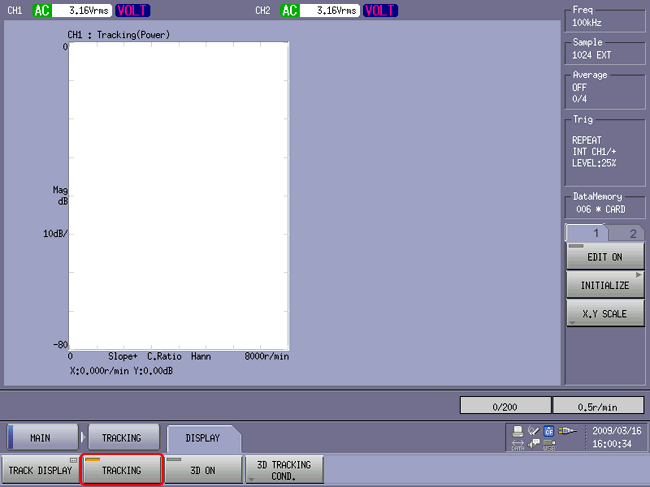
Click in the order of [MAIN] → [MEMORY] → [DATA] → [LIST] to display the list of record memories.
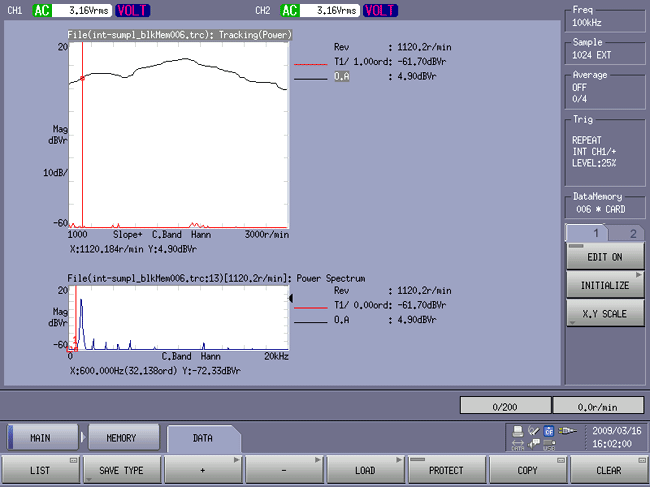
Change Tracking Frequency
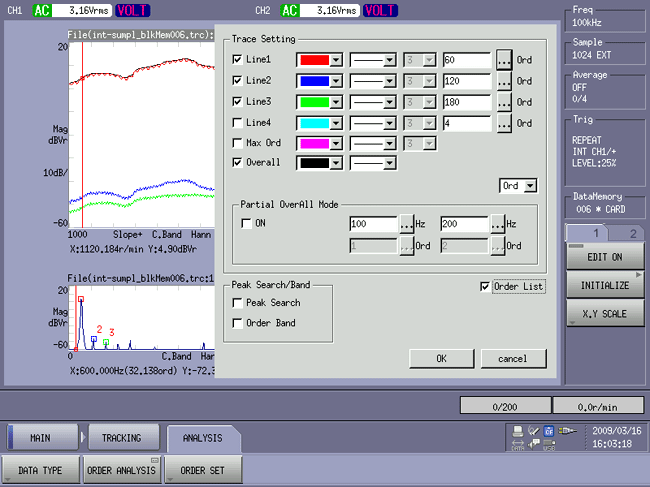
By clicking in the order of [MAIN] → [TRACKING] → [ANALYSIS] → [ORDERANALYSIS], you can display the 【TraceSetting】 dialog box, where you can change the analysis frequency and perform the analysis. In the display below, check Line1, 2, 3, and Overall that you want to display, and set the frequency to 60, 120, 180.
The specified degree of tracking data will be displayed. Additionally, clicking on the tracking data in the upper screen will move the red line (cursor), and the spectrum at that time will be displayed in the lower screen.
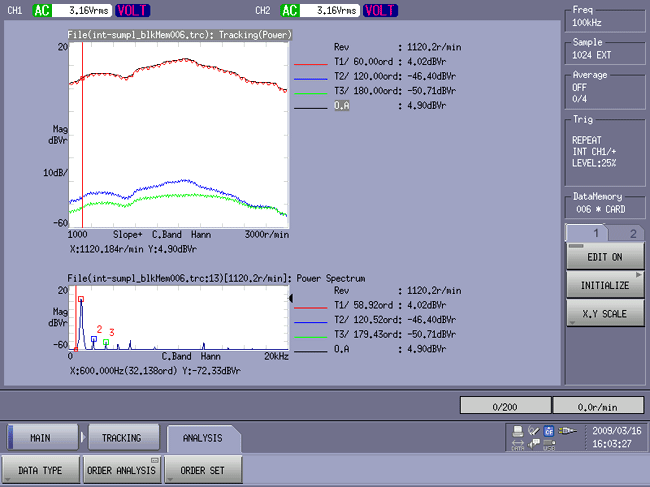
To change the degree of display you want, open the dialog box for operation 8 and make the necessary adjustments.
Last updated date: 2026-07-15