

sound level meter Frequently Asked Questions
Question number FAQ-1233
LA-7000シリーズ ファームウェアアップデート手順
Firmware Update Procedure
Notes on Firmware Update
- Please follow the steps to update. Updating with incorrect steps may cause
malfunction or failure of the sound level meter. - Always supply power from the AC adapter when executing the update.
- Do not remove the SD card, disconnect the power, or switch to OFF during the update.
This may cause malfunction or erroneous operation of the sound level meter. - The condition may be reset due to a firmware update.
Please back up any necessary conditions before the update.
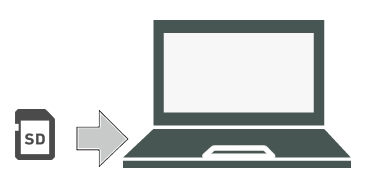
Prepare the update file.
Download the update file from our homepage.
Those who have purchased the optional features do not need to download the latest firmware data as it is already included on the SD card.
Confirm that the name of the downloaded update file is "LA7000Firmware.dat" and save it in the root directory of the SD card that came with your purchase.
(The update file can be downloaded from the user page. *User registration is required.)
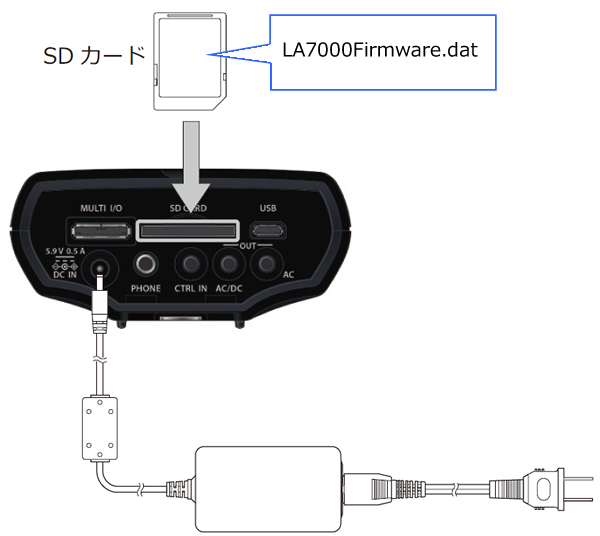
Start the sound level meter.
After switching the power supply of the sound level meter to the AC adapter, turn the power ON. Insert the SD card that contains the update files into the sound level meter.
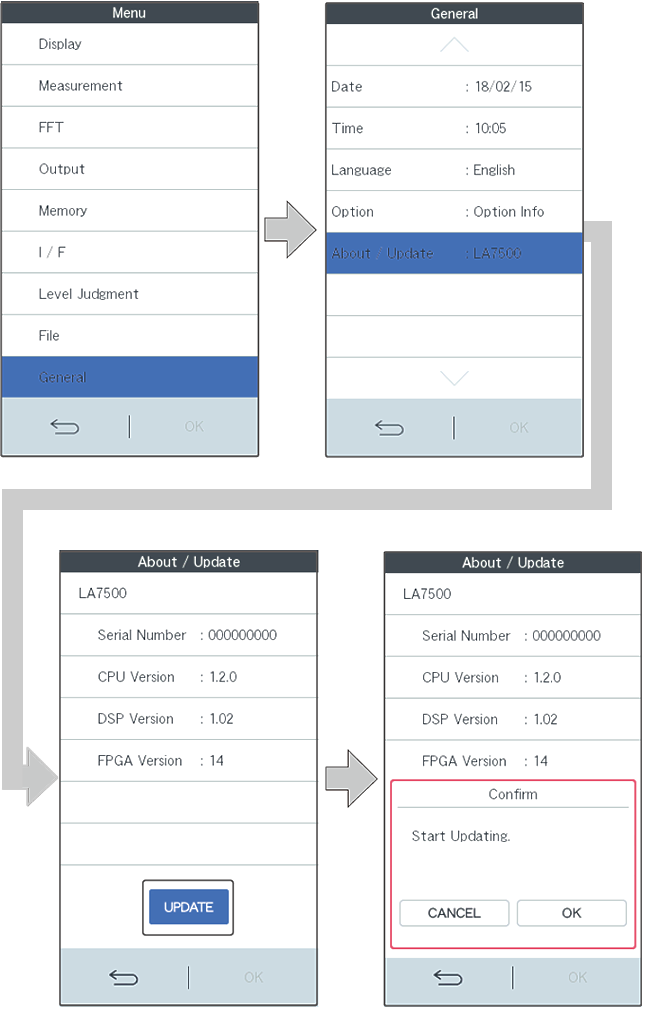
Switch to the update screen.
From the menu mode screen.
Tap on Genera l >About/Update in order to switch to the About/Update screen.
Tap the UPDATE button to display the Start Update screen, and then tap the OK button.
Confirm that a new screen for the update will launch.
Starting update 4
First, tap the FIRMWARE UPDATE button on the update screen.
Next, after confirming that the target version is displayed in New Firmware Ver, tap Enable to switch to ON.
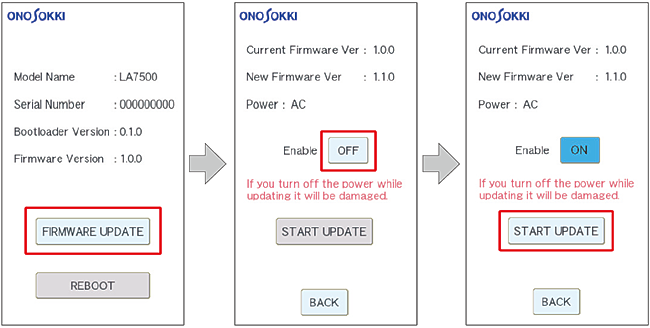
Finally, tap the START UPDATE button to switch to the update progress screen and start the update.
* During the update, please do not remove or insert the SD card, and do not turn off the power of the sound level meter.
Confirm the completion of the update.
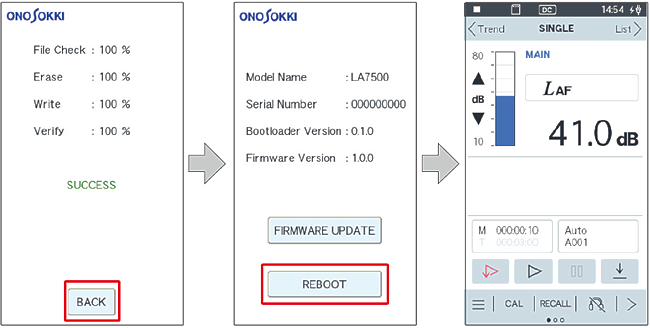
Wait until each item of File Check/Erase/Write/Verify reaches 100%. After confirming that SUCCESS is displayed, tap the BACK button to return to the update screen.
After confirming that the Firmware Version has been updated to the latest version, tap the REBOOT button. The sound level meter will automatically restart and return to the measurement screen, completing the update.
above
Last updated: 2018-03-14