

OS-2000 series Frequently Asked Questions
Question number FAQ-1016
To change the color for each file.
When overlapping files, the same color is set for each item, which can make the data overlap and difficult to see.
In such cases, setting colors for each file can make it easier to view.
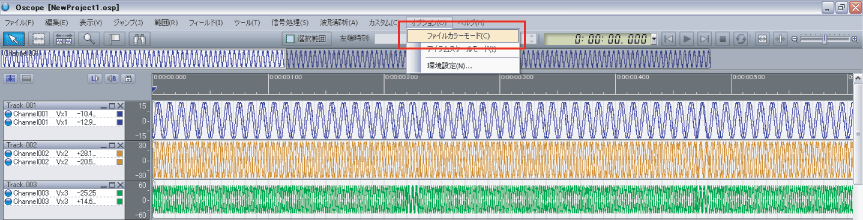
To change the color of a file, follow the steps below.
 | Click on [Options] - [File Color Mode] from the main menu.
|
 | Items that were previously displayed in the same color for each item are now displayed by file. Clicking on [Options] - [File Color Mode] again will return you to normal mode.
|

Last updated date: 2026-07-15