

DS-3000 Frequently Asked Questions
Question number FAQ-0735
The DS-3000 series installed on a Windows 10 PC cannot connect to the DS-3200 hardware. What should I do?
A common cause is that the USB communication interface device driver included in the older version of the installer is not compatible with the latest Windows.
We apologize for the inconvenience, but please reinstall the latest version ※ of the DS-3000 series and restart your computer after the installation is complete.
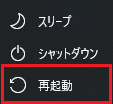
When restarting, please select [Start Menu] > [Power] > [Restart] from the Windows Start menu.
Procedure:
Please log on to the computer with an account that has administrator privileges.
(2) Download the latest DS-3000 series installer (DS3000_soft.zip) from the Ono Sokki user page and save it to your local drive.
(3) Open the saved folder, right-click on DS3000_soft.zip to open the properties, and if it says "Obtained from another computer..." in the General tab of the properties window, click "Allow" and then close the properties.
(4) ds3000_soft.zip right-click on the menu and select "Extract All." Please specify the destination as your computer's local drive.
Remove the USB protection key (software license key).
(6) Connect the computer to the DS-3200 using a USB cable and turn on the DS-3200.
(7) Launch the DS0320Setup.exe from the extracted ZIP folder and install it.
Insert the USB protection key (software license key).
(9) Launch the DS-0320 software and confirm that it is connected to the DS-3200.
If it cannot connect, please restart your computer and try again.
* Please open the VersionJ.txt expanded in the latest version (4) and check the following red text.
Example) DS-0320 Sound and Vibration Analysis Software : Ver 3.0.9.405
The latest version as of October 2024 is Ver 3.0.9.405.
Last updated date: 2024-10-11