

CF-7200 Frequently Asked Questions
Question number FAQ-0630
How to transfer measurement conditions to another CF-7200.
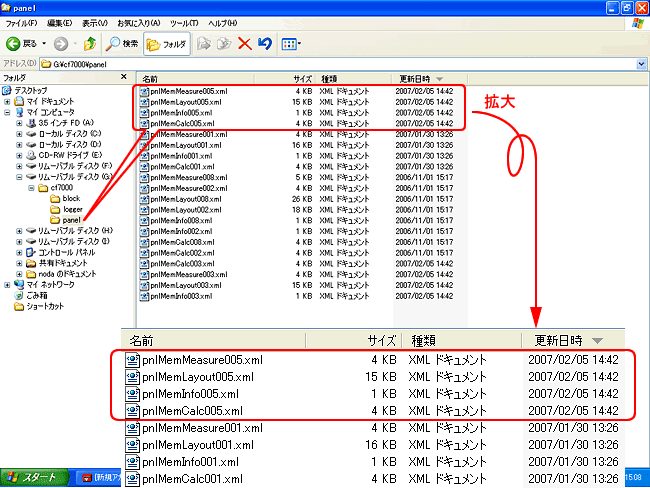
The measurement conditions (panel conditions) are saved in four separate files within the 'panel' folder on the CF card used for data storage. For example, if the panel condition is saved under list number 005, the names of the four files will be as follows.
You will move these four files by copying and pasting them onto a different CF card for the CF-7200. Please make sure to use a computer to check the saved file names and to write to the CF card of the other CF-7200.
operating procedures
The following are the operational steps for saving the measurement conditions to panel condition memory list number 005. The order of pressing the soft keys is indicated by arrows (→).
- Save measurement conditions to CF-7200.
- "Memory → Utility → Select Media → CARD" Turn on "CARD" (using CF card on).
- "Memory → Panel Condition → List → Select list '005' → Turn on 'SAVE'. The measurement conditions will be saved to panel condition number 005. The saved file, for example, pnlMemMeasure005.xml, indicates that 005 is the panel condition number."
- Turn off the power of the CF-7200 and remove the CF card.
- Insert the CF card into the card reader and connect it to the computer.
- Open 'CF-7200 → Panel' in the computer's file explorer.
Attention
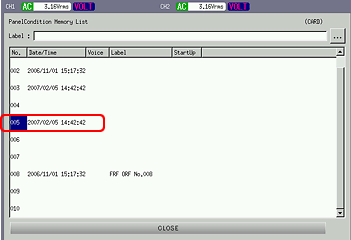
In the CF-7200 panel condition LIST display, the saved measurement conditions are shown as a single file with a timestamp, as illustrated in the figure below. Additionally, the CF-7200 unit itself cannot write to the CF card of another CF-7200.
Last updated: 2007-02-19